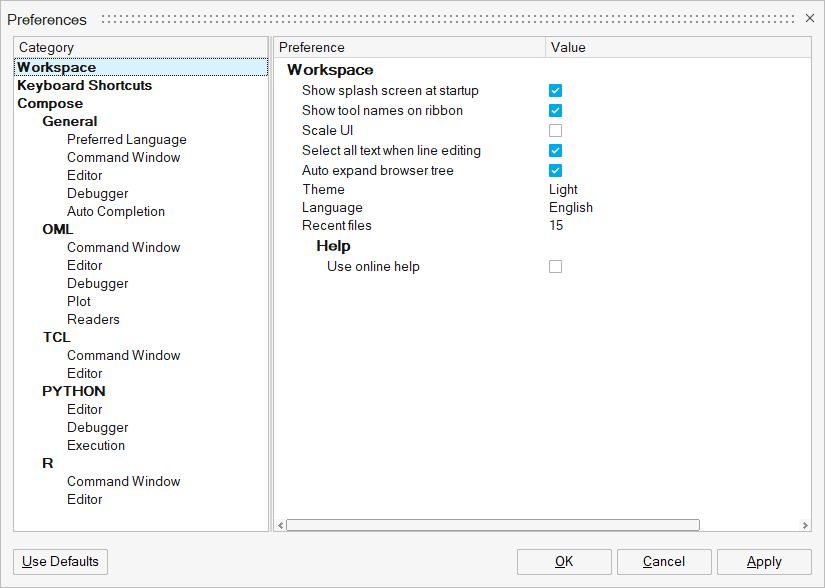
From the Preferences dialog, you can define preference settings for the Compose workspace, keyboard shortcuts, and user interface tools.
From the File menu, click Preferences to display the
dialog.
Define a Preference Setting
From the File menu, click Preferences to display the
dialog.
Figure 1.
Under the Category column, select the feature that you want to change the
settings for.
Upon selection, the Preference and Value options for the category are
displayed on the right side of the dialog.
The following selection methods can be used to define a preference:
To enable a preference setting, activate the check box: .
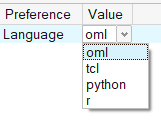
Click on a value to display a drop-down menu: .
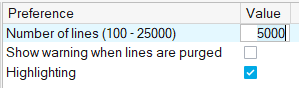
Click on a value to make a field editable and enter a new value: .
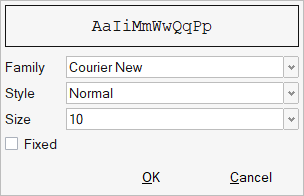
Click on a value to display a dialog that contains additional
options:
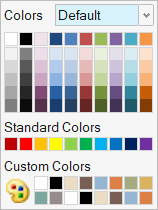
Click on a color box to display the color palette:
From PYTHON > Execution, select Interactive Execution to interrupt
the Python execution.
From PYTHON > Debugger, select Step into installed modules in Python
scripts to debug Python files in Python modules that are in the
Compose installation or installed with --user option.
Keyboard Shortcuts and Mouse Controls
Keyboard Shortcuts
Dock Windows
To do this
Press
Project Browser
F2
Property editor
F3
File Browser
Ctrl + Alt +
F
Command history
Ctrl + Alt +
H
Demo browser
F7
OML variable Browser
Ctrl + Alt +
R
OML Library Browser
Ctrl + Alt +
L
Python window
F4
Edit
To do this
Press
Copy
Ctrl + C
Cut
Ctrl + X
Delete
Delete
Find
Ctrl + F
Go To
Ctrl + G
Paste
Ctrl + V
Redo
Ctrl + Y
Replace
Ctrl + H
Undo
Ctrl + Z
File
To do this
Press
Close
Ctrl + W
Close All
Ctrl + Shift +
W
Import
Ctrl + I
Open
Ctrl + O
Print
Ctrl + P
Save
Ctrl + S
Save All
Ctrl + Shift + S
Save As
F12
View
To do this
Press
Full Screen
Alt + F11
Collapse All
Alt + 0
Expand All
Alt + Shift +
0
Stop Outlining
Ctrl + M, Ctrl +
P
Toggle Outlining
Ctrl + M, Ctrl +
O
Debug
To do this
Press
Start Debugging
F5
Run File in Debug mode
F5
Stop Debugging
Shift + F5
Step Into
F11
Step Over
F10
Step Out
Shift + F11
Step Until
Ctrl + F10
New Breakpoint
Ctrl + B
Clear All Breakpoints
Ctrl + Shift +
F9
Editor
To do this
Press
Cycle through recent files
Ctrl + Tab
Indent block
Tab
Remove indent from block
Shift + Tab
Delete to start of word
Ctrl + Backspace
Delete to end of word
Ctrl + Delete
Delete to start of line
Ctrl + Delete +
Backspace
Delete to end of line
Ctrl + Shift +
Delete
Go to start of document
Ctrl + Home
Extend selection to start of document
Ctrl + Shift +
Home
Go to start of display line
Alt + Home
Go to end of document
Ctrl + End
Extend selection to end of document
Ctrl + Shift +
End
Go to end of display line
Alt + End
Clear command window
Ctrl + L
Line copy
Ctrl + Shift +
T
Line delete
Ctrl + Shift +
L
Line transpose with previous
Ctrl + T
Selection duplicate
Ctrl + D
Previous word (Shift extends selection)
Ctrl + Left
Next word (Shift extends selection)
Ctrl + Right
Rectangular block selection
Alt + Shift +
Movement
Match Brace
Ctrl + ]
Select to Brace
Ctrl + Shift +
]
Comment Selection
Line selection and Ctrl + K
Uncomment Selection
Line selection and Ctrl + K
Go To Definition
Function name selection and Alt +
O
Plot View - Mouse Control
To do this
Press
Pan the plot
Ctrl + Mouse left button dragging
Zoom in/out the plot
Mouse wheel rolling up/down
Reset plot view
Middle mouse button (mouse wheel) click
Or
F key press
Circle zoom in plot.
Middle mouse button (mouse wheel) dragging
Box zoom in plot
Ctrl + Middle mouse button (mouse wheel)
dragging
Edit Keyboard Shortcuts
Use the Keyboard Shortcuts editor to introduce new shortcuts or overwrite existing
ones to run functions from ribbons and toolbars. It is also possible to run Compose OML, Python, TCL, or
R scripts with a shortcut.
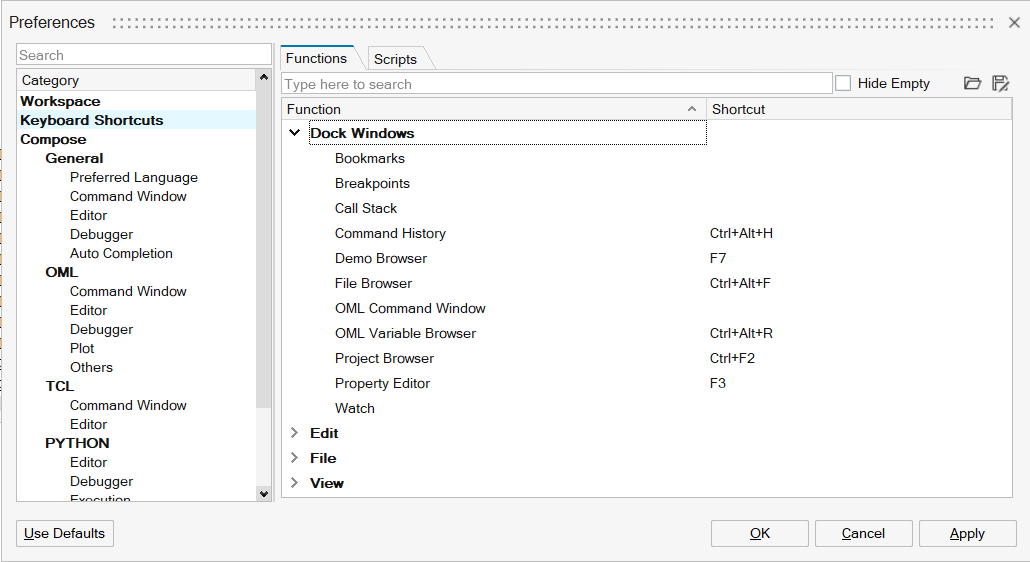
You can access Keyboard Shortcuts from File > Preferences. Only Dock, File, Edit, View section
shortcuts are supported for editing.
Shortcuts can consist of letters, numbers, and a set of special characters (see the
detailed list below) combined with or without the following modifier keys:
Ctrl
Shift
Ctrl + Shift
You can export and import shortcuts from an .XML file so
that you can save a backup of the latest status or share definitions.
Functions Tab
The Functions tab provides a tree structure of the tools available for shortcut
assignment. Use the Hide Empty check box to reduce the list
to the functions that currently have a shortcut assigned.
To enter a shortcut, highlight the desired function and click on the field in the
shortcut column. Then, press the keys you want to use as shortcut.
All newly applied shortcuts are highlighted in blue until you click
Apply or OK.
To search for functions and sort alphabetically, click on a column header.
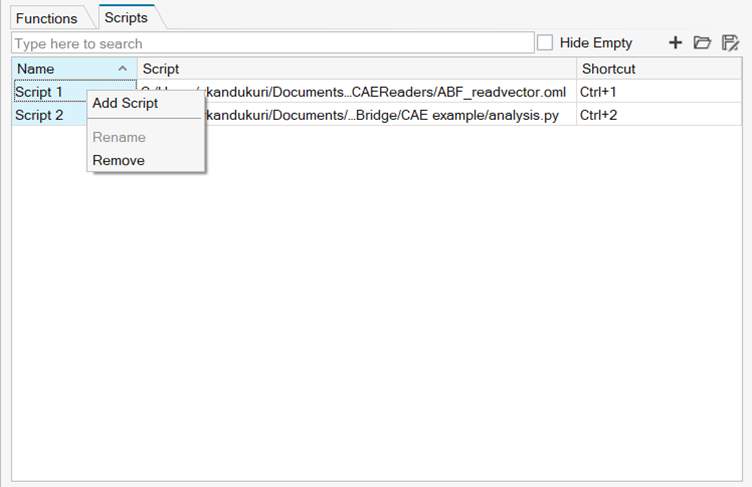
Scripts Tab
In the Scripts Tab, to register your own Compose OML,
Python, TCL, or R
scripts, click + in the upper right of the table. Right-click
on a script to change its name.
You can also delete one or several scripts at a time from the context menu.
Supported Keys
You can use the following with or without the modifier keys Ctrl, Shift, Ctrl
+ Shift: