
Share a File or Folder
Share a file or folder with another user or team.
Share a file or folder with the following fixed roles:
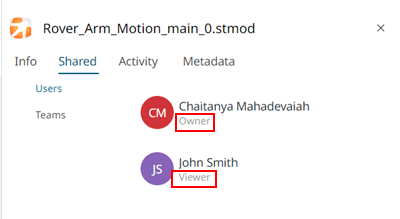
- Owner: User can execute, view, read, update, download it to you local system, mark it as favorite, share it a another user, and delete the shared files.
- Editor: User can execute the file, view, read, update, download it to you local system, and mark it as favorite.
- Viewer: User can view, read, download files to you local system, and also mark it as favorite.
The list of users and teams and their roles are
displayed in the Shared tab:
-
Click
 from your Favorite Apps on the home
page.
The Files tab is displayed.
from your Favorite Apps on the home
page.
The Files tab is displayed. -
Choose one of the following options:
- Hover over a file or folder, click
 > Share.
 - Select the file or folder, click Share on the Action Ribbon.
- Right-click the file or folder and then click Share.
The Share dialog box is displayed.Figure 1. Share File or Folder 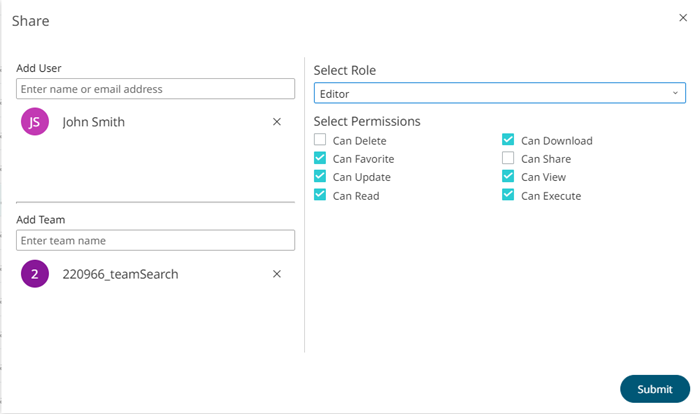
- Hover over a file or folder, click
-
To share a file or folder with a user:
-
For Add User, begin entering the user name of a
user with whom you would like to share.
A list of matching user names are displayed.
Figure 2. Matching Users 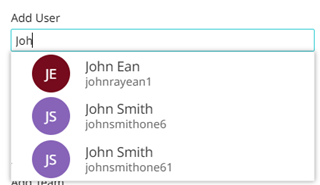
-
For Add User, begin entering the user name of a
user with whom you would like to share.
-
To share a file or folder with a team:
-
For Add Team, begin entering the name of the
team with whom you would like to share.
A list of matches are displayed.
Figure 3. Matching Teams 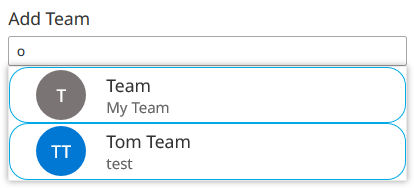
-
For Add Team, begin entering the name of the
team with whom you would like to share.
-
For Select Role, assign permissions to the file or
folder by choosing a role.
- Editor: User can execute, read, update, download, add as a favourite, and view details.
- Owner: Provides full permissions for a user. This includes Editor role and additionally, user can share and delete the file or folder.
- Viewer: User can read, view, download, and add it as their favourite file or folder.
- Custom: This role appears when you modify the default permissions of the above default roles.
-
Click Submit.
The selected file or folder is shared and a notification is displayed.