
Datasets
Datasets are container entities that can hold properties of various data types such as Real, Integer, String, Boolean, Filename, and Option.
Datasets can be used to categorize and organize various properties for a System or Analysis that are then linked to other entities.
Add a Dataset
Use the DataSets tool to create datasets comprised of object types, such as real, string, boolean, integer, and options.
-
On the Motion ribbon, under Profile, select
Analyst.

-
Under References, select the DataSets tool from the
dropdown. If DataSets is not visible, use the
 dropdown under the
Splines tool).
dropdown under the
Splines tool).
Tip: To find and open a tool, press Ctrl+F. For more information, see Find and Search for Tools.The guide panel opens.Figure 1. 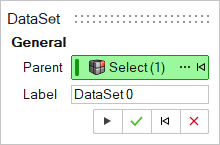
- Optional: To select a Parent system, click ....
- Optional: Edit the Label.
-
Click Apply
A dataset entity has been added to the model under the selected Parent system, its properties will automatically be displayed in the Property Editor.Note: By default, variables names of entities in Inspire follow a certain convention. For example, all dataset entities have a variable name starting with “DataSet_”. This is the recommended convention to follow when building models in Inspire since it has many advantages in model editing and model manipulation.
- Optional:
To add, modify, or delete an attachment, see Attachments
for more information.
Note: You can add DataMembers only in the Property Editor. See Dataset Properties.
Edit a Dataset
Edit a dataset using the DataSet tool or the Property Editor.
- Select the dataset.
-
Choose from the following methods:
Table 1. Edit methods To use this method Do this DataSet tool - On the Motion ribbon, under Profile, select
Analyst.
- Under References, select the
DataSet tool.
- The DataSet guide panel appears.
Property Editor - From the View menu, select Property Editor.
- On the Motion ribbon, under Profile, select
Analyst.
- To add, modify, or delete an attachment, open the guide panel. See Attachments for more information.
Dataset Properties
Descriptions of dataset properties in the Property Editor.
| Property Name | Description | |||
|---|---|---|---|---|
| General | ||||
| Name | Name of the entity | |||
| Variable Name | The variable name, a unique identifier string of the entity | |||
| ID | A unique identifying integer If the field is a pair entity, separate IDs are set for the Left and Right sides. |
|||
| Definition | ||||
| Name | Variable name of the definition the dataset is instanced of. | |||
| File | Definition file name (mdl), if the definition is included through a file. | |||
| File Modified | Indicates definition file is modified, but not saved. | |||
| Properties | ||||
| DataMembers | Click
Add/Delete to open a floating dialog
where you can add or delete data members. Select the
Type from the following:
Click the + icon to add the data member to the table. To delete a data member, select
a row in the table, and then click the
 icon. 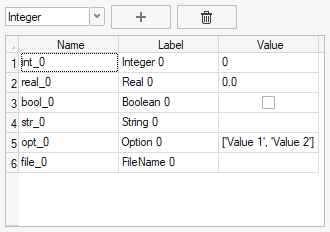 You can edit most of the data member values in both the dialog and the Property Editor table. You can only edit the data members' Name and Label, and the values of the Option type, in the dialog. The data members are identified by their name in the below fields of the Property Editor. |
|||
| [Integer Data Member] | Enter an integer value. | |||
| [Real Data Member] | Enter a real number value. | |||
| [Boolean Data Member] | Select or deselect the check box to set the Boolean true/false value. | |||
| [Option Data Member] | Select the option from the
dropdown. Note: To edit the values of the options,
open the DataMembers Add/Delete dialog.
|
|||
| [File Data Member] | Click the  icon to browse for a file. |
|||
| Attachments | ||||
| [Attachment] | Click the attachment name to open the DataSets guide panel. To add or edit attachments, see Attachments. | |||