
View Desktop Status
Monitor the status of your running and past desktop sessions.
- Login to Altair One.
- Click .
-
Click Desktops on the left pane. The list of running and
past desktops is displayed.
Note: The number beside Desktops on the left pane indicates the number of running desktops.
Figure 1. Desktops Page 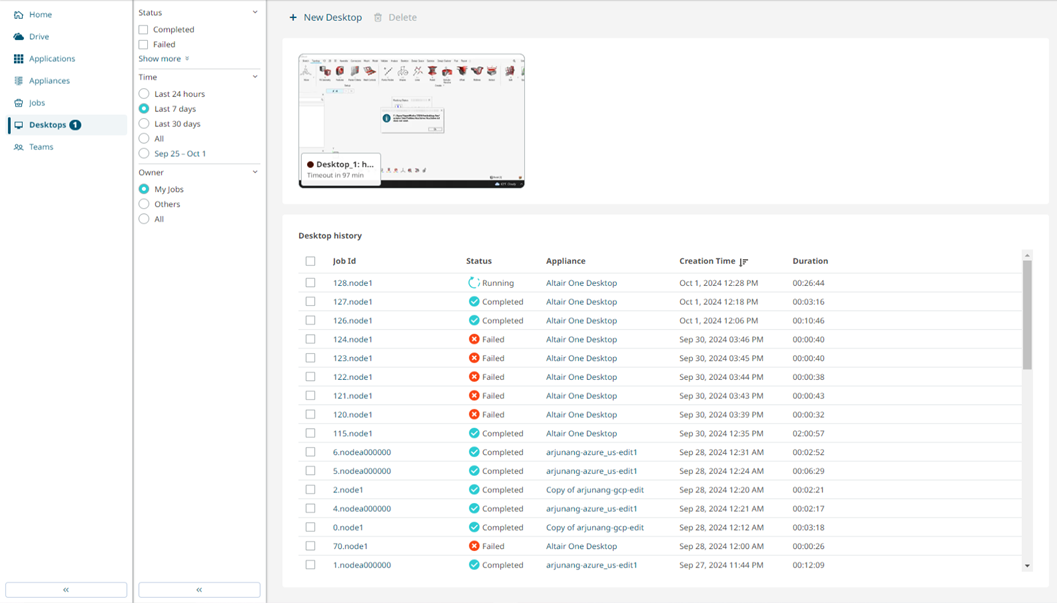
-
The Running Desktops section displays the launched desktop session that
is currently active and running. In this example:
-
The running desktop named Desktop_1, which has been active for 00:02:45 (02 minutes and 45 seconds).
-
It has a timeout set for 118 minutes, after which the desktop session will expire.
-
A thumbnail preview of the running desktop is displayed, showing what the user is currently working on.
-
-
Click New Desktop to start a new desktop session. The
New Desktop window opens and lets you choose either the default or
your appliance.
Figure 2. Select Appliance 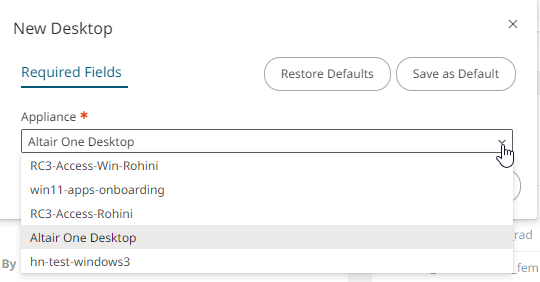
- The Desktops history section provides the desktop's job id, status, appliance name, creation date and time, and duration of each session.