HyperMesh CFD 2025.1 introduces the following new features:
Geometric Modeling
Units support
Automated gap patching
Capability to find zero thickness parts
Solid modeler environments (beta)
Case Setup (External Aerodynamics)
Enhanced output controls including direct import of .csv files
for probes, and coarsening parameters for volume outputs.
Post-Processing
Comparison between two datasets
Multi-plane slice for volumetric slice planes
Multi-window framework (beta)
EDEM particle support (beta)
Report Utilities context (beta)
Update to ParaView 5.13 libraries, compatible with OSMesa
Design Exploration
New morphing capabilities
PhysicsAI workflow for KPI and field prediction
Geometric Repair
New Features
Unit Support
Unit Selection is supported for CFD 2025.1. You can now select the
desired unit upon loading the model and then change unit within the
sessions. On changing unit, geometries, mesh and settings will be
scaled. Units are supported for General Purpose Solution: Case Setup as
well. You can enter a value in any unit and on pressing Enter it will be
changed to current global unit.
Zero thickness parts detection
One of the key requirements for auto enclosure workflow is to find and
inflate zero thickness parts. A new option has been added to detect zero
thickness parts for lite model.
Automated gap patching
New functionality added in gap tool to automatically patch gaps for
selected parts. This functionality will reduce modeling time
significantly for external aero modeling as well as cabin comfort. In Cap > Gap tool, you can close gaps across two selection groups or if you
selects parts in first selection group it will patch gaps between these
parts.
Enhancements
Geometry creation in lite mode
Supported geometry creation capability in lite model – so user does not
need to load CAD data to create geometries in lite model. User can use
box, cylinder, lines, points, revolve region, simplify regions tools to
create geometries.
Split parts
Enhanced Assembly Merge/ Split tool for lite mode to automatically
load CAD representation, split the CAD parts based on bodies, create CAD
representation for new parts and reload lite representation of
part.
Template manager
Supported all operations available in discrete ribbon and operations
like Mirror, Scale, Save in operations. Supported all Find operations
for part group creation.
Resolved Issues
FE geometry model volume meshing failure has been resolved.
Not able to rename part after duplicating part has been resolved.
Case Setup
Enhancement
Probe Outputs
Multiple enhancements have been made to the surface and volume probe
contexts:
Import probe .csv files directly in the guide bar to create
probe instances.
Output variables are accessible from the micro dialog advanced
menu selection.
Surface probes support a radius parameter.
Outputs
New option to delete original dataset after merging for relevant
output instances.
New set of options to coarsen volume output, both global and per
instance settings.
New variables, velocity magnitude, std. deviation and variance
of pressure, for relevant output instances.
Section cuts support parameter for triangulation.
Monitoring surfaces have a default color and transparency to
differentiate from regular surfaces.
Miscellaneous
XML output is less verbose, specifically default walls are
skipped from the file.
Ground patch has adjustable length and width controls as a
fraction of the vehicle’s dimensions.
Default names for offset and volume refinement zones have
underscores instead of spaces.
Systems and Move tool contexts have been redesigned and
enhanced.
Performance increases when interacting with models with large
number of parts.
Python API
Create ground patch.
Multiple variables are now editable, such as: numTimeSteps,
machFactor, volumeOutput.xmin, and
offsetRefinementZone.name.
Resolved Issues
Polynurbs toolset have been enhanced and works without issues.
Axis and Center specified in the xml file are not overridden automatically
on import.
Display/UI sync issues where number typed is not displayed correctly has
been fixed.
Segmentation error on creating overset fan is fixed.
Repeated fan parts are captured and duplicate entries prevented.
Special characters like <> in part names are captured and converted to
underscores consistently.
Push/pull tools on box faces work as expected for the turbulence, mesh
refinement and volume output contexts.
Installation issues with the Assets folder have been addressed. Client will
now gracefully bypass errors due to missing files.
Names of surface outputs and probe outputs are now imported from the xml
file.
Section cuts and probe outputs accept display color adjustments.
Defaults button for advanced mesh control dialog has been fixed.
Probes micro dialog correctly resets on creating another probe and all
options are available.
Probe locations are updated live in graphics when the table is updated.
Offset layers and distance fields are in sync when one of them is
updated.
Turbulence source height is prevented from being set to 0.
Negative coefficients are supported for a virtual fan model.
Wind tunnel velocity is not reset while selecting the arrow.
Probe files are imported without errors if the last line does not contain a
line feed.
Files in the exported folder are not automatically deleted when a new
simulation is exported.
Turbulence zone extents change correctly when edited from property
editor.
Frontal area in the controls panel has the correct units.
MRF volumes have a separate category in the part browser.
Post-Processing
New Features
Compare results from two datasets
Compare utility to compute the difference, quotient or non-dimensional
difference between two datasets. Creates a third dataset that is
automatically loaded into the session and is exportable to a user
selected format for future use.
Multiple slice plane
The Slice Planes tool is updated to include the number of offset planes,
offset distance and offset direction, allowing users to create multiple
slice planes within a single definition. The tool is compatible with
Finite slice and displays the same set of slice display properties on
each of the planes. Not compatible with Crinkle slice.
Multiple window and page layout (beta)
The Post-processing modeling environment is redesigned to include
multiple viewports and pages. Individual viewports can be accessed with
predefined layouts, giving users the ability to compare multiple results
next to one another. The page layouts can be stored, along with the
result definitions and rendered scene items within the cpstate file(s).
The number of cpstate files will be equal to the number of viewports +
1. When applying a state file, the specific viewport cpstate file should
be used to define the rendered scene from the previously saved
work.
EDEM particle support (beta)
Particle result files from EDEM (.dem) can be loaded into the
Post-processing modeling environment and rendered along with other
datasets, e.g. AcuSolve CFD result files allowing users to create scenes
with DEM and CFD shown simultaneously. Multiple particle types:
multi-sphere, polyhedral and spherocylinder particles, can be rendered
using result display values and/or constant coloring.
Report Utilities context (beta)
Various report utilities are available from the Post-processing modeling
environment. Each of the configuration types supports a different
utility that may be needed. The following tasks are supported: creating
a report using a defined image file, mapping results, decimating result
files, triangulating result files, computing pedestrian comfort index,
exporting a pressure + wall shear stress force vector, and export
(converting) result files. Results support is added for .case, .sos,
.encas, .h3d, .vtk, .vtu, .pvd, and .stl.
Enhancements
General
When Aerodynamics and Aeroacoustics modeling profile is
selected, the default result file type is set to
ultraFluidX.
The Post-browser shows the file path and name when a dataset
hovered over.
The Post-browser highlights the specific entry when an item is
selected from the graphics window.
HMCFD Report: Ability to change the title of pptx file
generated.
HWCFD Report: Non-Continuous color contours.
HMCFD Report: Expand use of functions & variables across
fields.
HMCFD Report: Change the resolution options of output images to
be 16:9 aspect ratio.
Aerodynamics
HMCFD Report: Surface streamlines on surfaces and slice
planes.
HMCFD Report: Provide vector subset option to volumetric slice
planes.
Aeroacoustics
Within the aeroacoustics portion of the ribbon, a launcher for
HyperMesh NVH Director is available, allowing users to easily
launch NVHD for interior noise propagation analysis.
Selection of velocity_magnitude is available from the GSP
processing tool for volumetric signal processing.
HMCFD Report: GSP - Add capability to processes multiple
surfaces with a single call.
HMCFD Report Post: Use gsph5 inside the DATASET instance.
HMCFD Report: Add Identifier for dB-Maps Frequency Band when
opening gsph5 files from the DATASET instance.
HMCFD Report: Frame rate attribute added to control the number
of frames per second in mp4/avi files written from GSP.
Resolved Issues
Modification to the Signal Processing title from “Acoustic Map” to “Contour
Map” to avoid confusion with the diffusive/grazing acoustic loads definition
available in NVHD.
Plot intersection curve and rake for .case/.sos files that have inconsistent
variables was previously causing a crash.
The legend was not previously clear when a screenshot or video was saved to
file.
The cut plane animation index was not modifiable in certain situations.
The previous calculation of Lamba (1/2/3) made assumptions within the
definition of the variable that were not consistent with industry standards
and were being treated as vectors. The calculation has been updated and the
three quantities are now treated separately, not as a vector.
A user specified tolerance is available to control how “Animate all
datasets” selects the coincident time vector between one or more datasets.
This allows for a defined tolerance to ensure that the datasets animate
properly for similar results file that may have their time fields not
perfectly aligned with each other. (Beta feature for EDEM).
"," is missing in header of plots→Export data (.txt) file.
HMCFD Report: Vector could not be colored by contour_function.
HMCFD Report: seed_type = rectangular only using x-plane, has been expanded
to y-plane and z-plane.
HMCFD Report: ExportStride not previously functional for mp4 output.
File handle to results stored on disc was not always deleted upon File > New. Results may be deleted from disc when the dataset is deleted
in session from the browser or from File > New.
Design Exploration
New Features
New Morphing Routine
A new morphing routine was added to make morphing easier to define,
parametric, and to get smoother morph results. With the new morphing
routine, two new tools were added:
Control Points
A tool to create control points to utilize for morphing. You
can create random or uniform control points on selected
geometries.
Morph
A tool to define active parts, control volumes to define
morph domain, active control points and fixed points to
define fixed regions.
The new morphing tool has the capability to constrain the
scope of morphing by selecting parts, selecting control
volume or by defining impact radius. You can now utilize
symmetrical morphing when all morphs are defined, and morph
definition templates can be created, independent of
geometry.
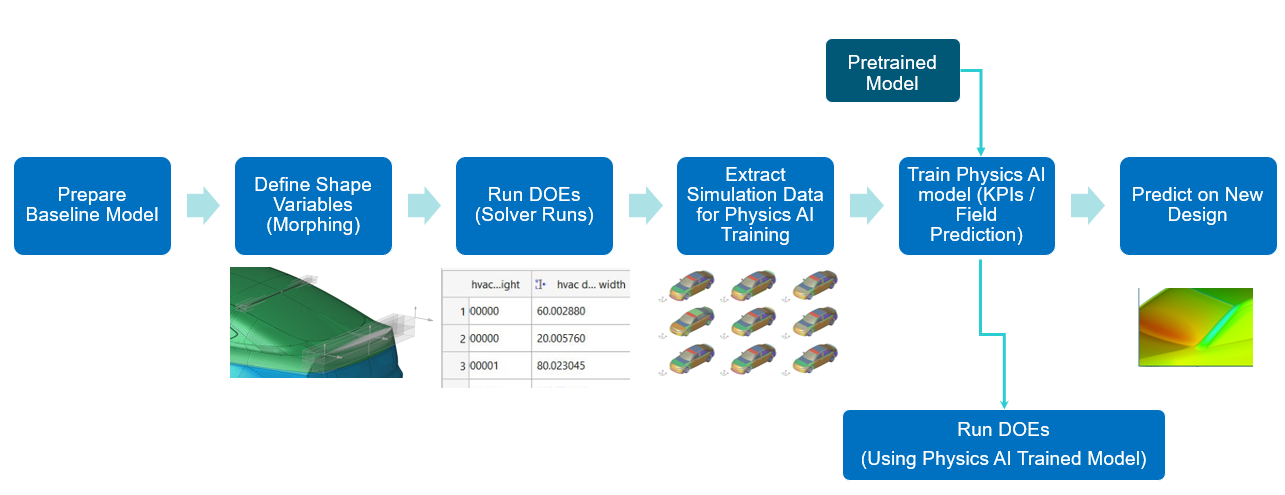
PhysicsAI
The PhysicsAI ribbon has been added to provide capabilities to train
models with existing simulations and predict KPIs or surface fields.
KPIs prediction
Useful to predict KPIs:
Drag | Lift | Pressure drop | Uniformity
index
No heavy compute resources need to train
Fast to train
No need to decimate result data
Field Prediction:
Useful to predicts surface fields:
Pressure | Wall Shear Stress |
Temperature
Requires consistent set of training data
Requires significant compute resources
Need to decimate the data to reduce node count
Decimate Tool
The new Decimate has been added to reduce geometric complexity of
results to optimize training time and resource usage.
With PhysicsAI and morphing capabilities, you can utilize following workflow.Figure 1.
Known Issues
For more information on issues found throughout the release, and their workarounds,
please see the Altair Community.