
Download Two Material Pairs Data
Download simulation-ready best and worst-case scenario material pairs data from SMDC Stick-Slip database to Squeak and Rattle Director (SnRD).
- On the SMDC home page, click .
-
Select a material pair and then click
 Details.
An Info tab opens to the right displaying the general information of the selected material pair.Note: Click
Details.
An Info tab opens to the right displaying the general information of the selected material pair.Note: Click to view the material information in full screen
mode.
to view the material information in full screen
mode. -
Click the CAE Model tab.
The Select Software displays Squeak and Rattle Director as already chosen.
-
Select a scenario from the Scenario list. By default,
the Worst Case Scenario is chosen.
Figure 1. Material Pair Preview 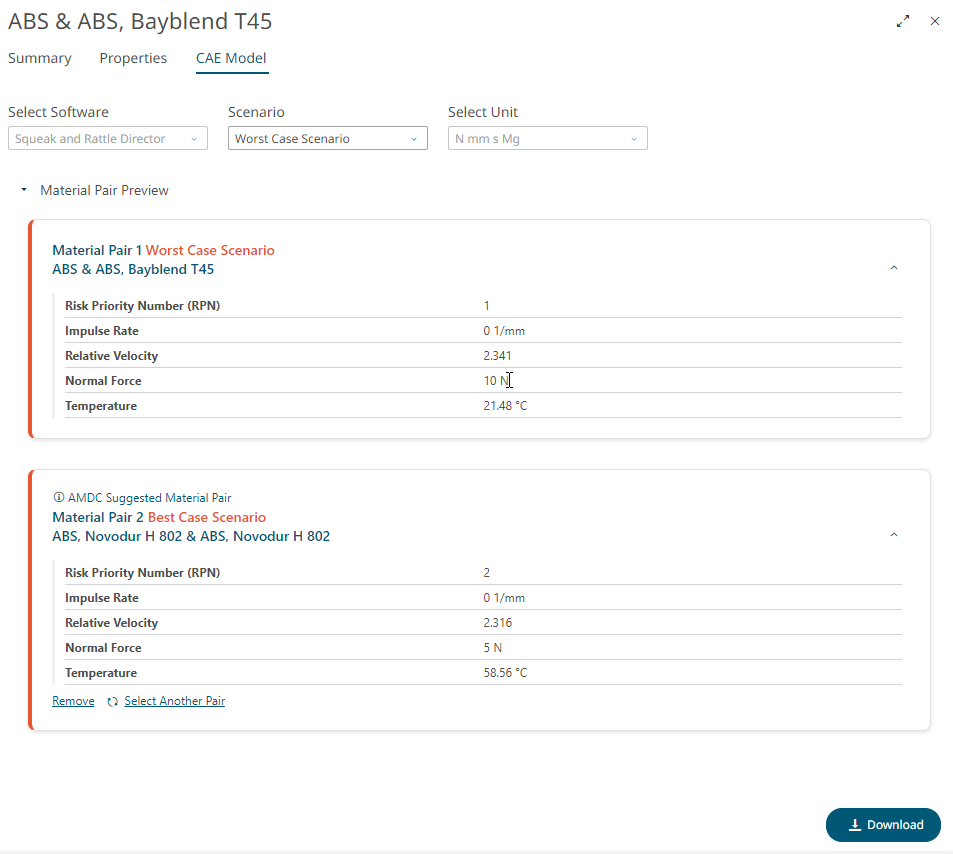
The Material Pair Preview displays the following:- Material Pair 1 Worst Case Scenario (selected by default): Displays important material properties including impulse rate value for the worst-case scenario for the selected material pair.
- Material Pair 2 Best Case Scenario: Based on your selection, SMDC suggests the opposite scenario. In the current example, SMDC suggests best-case scenario with lower impulse rate value and other material properties for the same selected material pair.
-
If you do not want the suggested second material pair you can choose a
different material pair. Click the Select Another Pair
link from the SMDC suggested Material Pair
2 preview.
-
Select the required material pair from the Select Second Material
Pair window. For your reference, the selected first material
pair is highlighted in green.
Figure 2. Select Second Material Pair 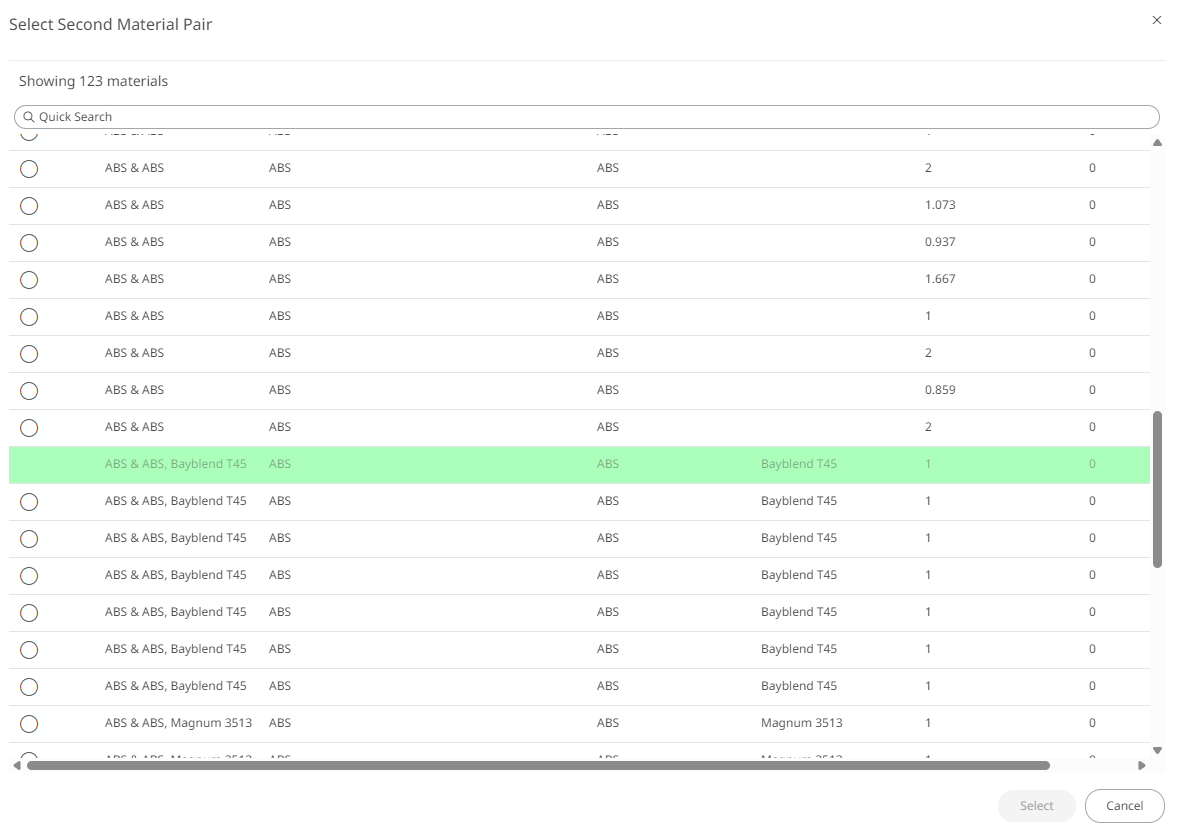
Note: Use the Quick Search field to filter the list and select the required material pair.
-
Select the required material pair from the Select Second Material
Pair window. For your reference, the selected first material
pair is highlighted in green.
-
Click Download to export the material pairs data as a
CSV file to the SnRD director.
Figure 3. Download Material Pairs - Best and Worst-Case Scenarios 
The exported CSV file contains the following information in the case of downloading two material pairs:Table 1. Exported two material pairs CSV file details Column Name Description Source Indicates the name from which the data is sourced. Name Displays names of a material pair. For example, ABS & ABS+PC, Bayblend T65. Material 1 Displays the material names of first material pair. Material 2 Displays the material names of second material pair. RPN Displays the RPN values of both material pairs, separated by a hyphen Inv(IR) Displays the inverse impulse rate values of both material pairs, separated by a hyphen. Relative Velocity Displays the relative velocity values of both material pairs, separated by a hyphen. (For example, 4 - 5) Normal Force Displays the normal force values of both material pairs, separated by a hyphen. (For example, 40 - 40) Temperature Displays the temperature values of both pairs, separated by a hyphen. (For example, 10 - 10) Note Indicates the traceability (any changes made to the original dataset) of the data.