
Customize Properties
Add, remove, modify, or rearrange properties displayed in the Properties tab of the AMDC Datasheet.
Add Property
- Open AMDC
.
This section displays all properties grouped as they appear in the Properties tab.
- Select the required property in the Base Catalog.
Figure 1. Add Property to Application Catalog 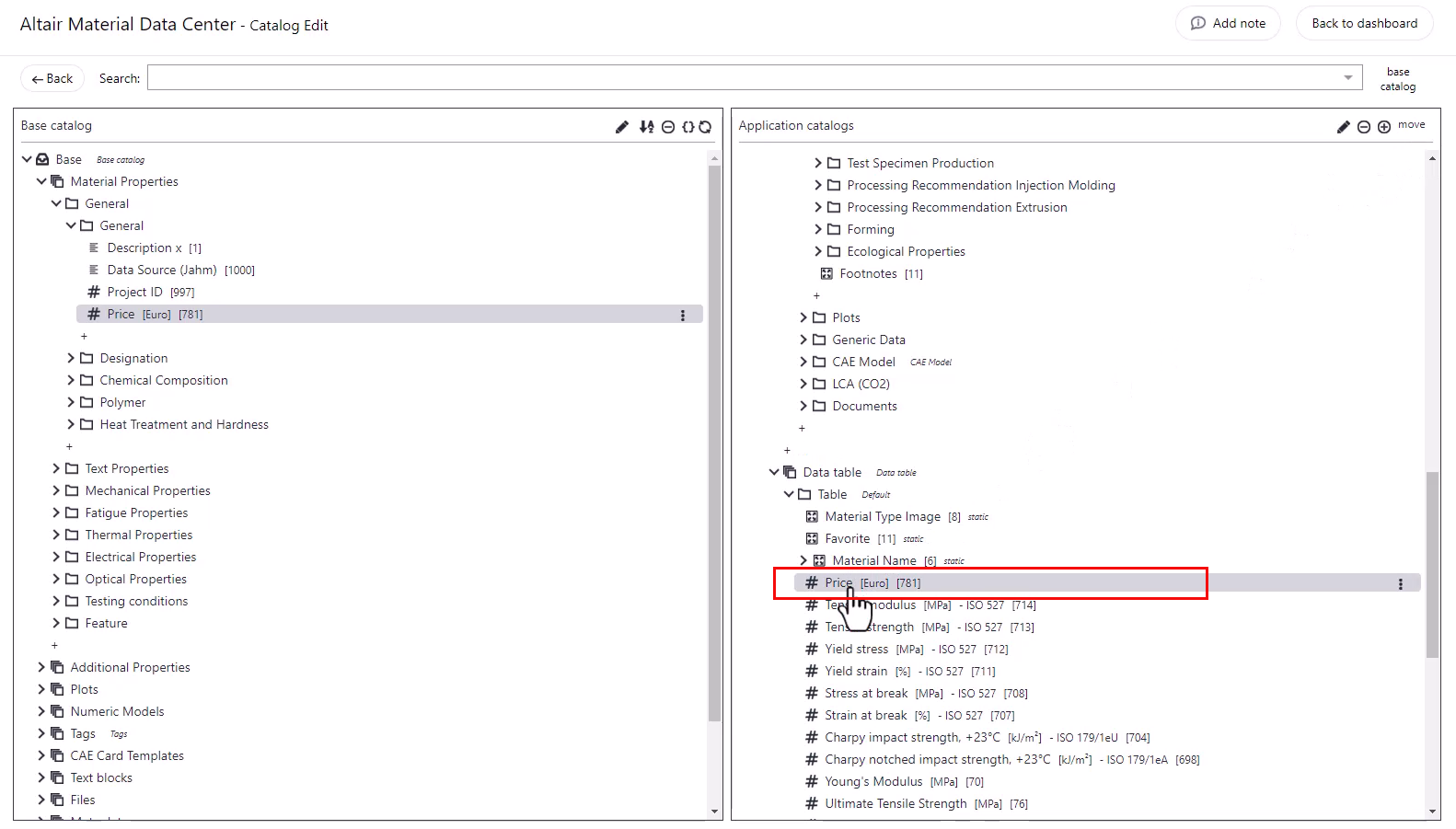
- Click the toggle (Drag and Drop Behaviour) button to
move to add material properties from Base
Catalog to Application Catalog
 .
. - Drag and drop the property into the desired group under the Properties tab in Application Catalog.
Rearrange Property
- Navigate to AMDC .
- Click the toggle (Drag and Drop Behaviour) button to
copy
 to rearrange material properties
within Application Catalog .
to rearrange material properties
within Application Catalog . - Drag and drop properties within a group to change their order.
- Rearrange the properties as you wish in the Properties tab.
Remove Property
- Select the property and then click
 next to the property you want to remove.
 Select Delete item from the menu.
The property is removed from the Properties tab for the user.